How To: Local Viewer
Your first 3D model in Differential.Tools — no account, no installation
Differential.Tools Local Viewer lets you open and explore 3D models directly in your browser — no account, installation, or cloud upload required.
Drag your model into the viewer, navigate around it with orbit, pan and zoom, and switch between different display modes to inspect the geometry.
Your local model stays on your computer: the free viewer runs client-side in your browser.
1. Open the Local Viewer
Open the Differential.Tools Local Viewer in your browser.
2. Choose a model
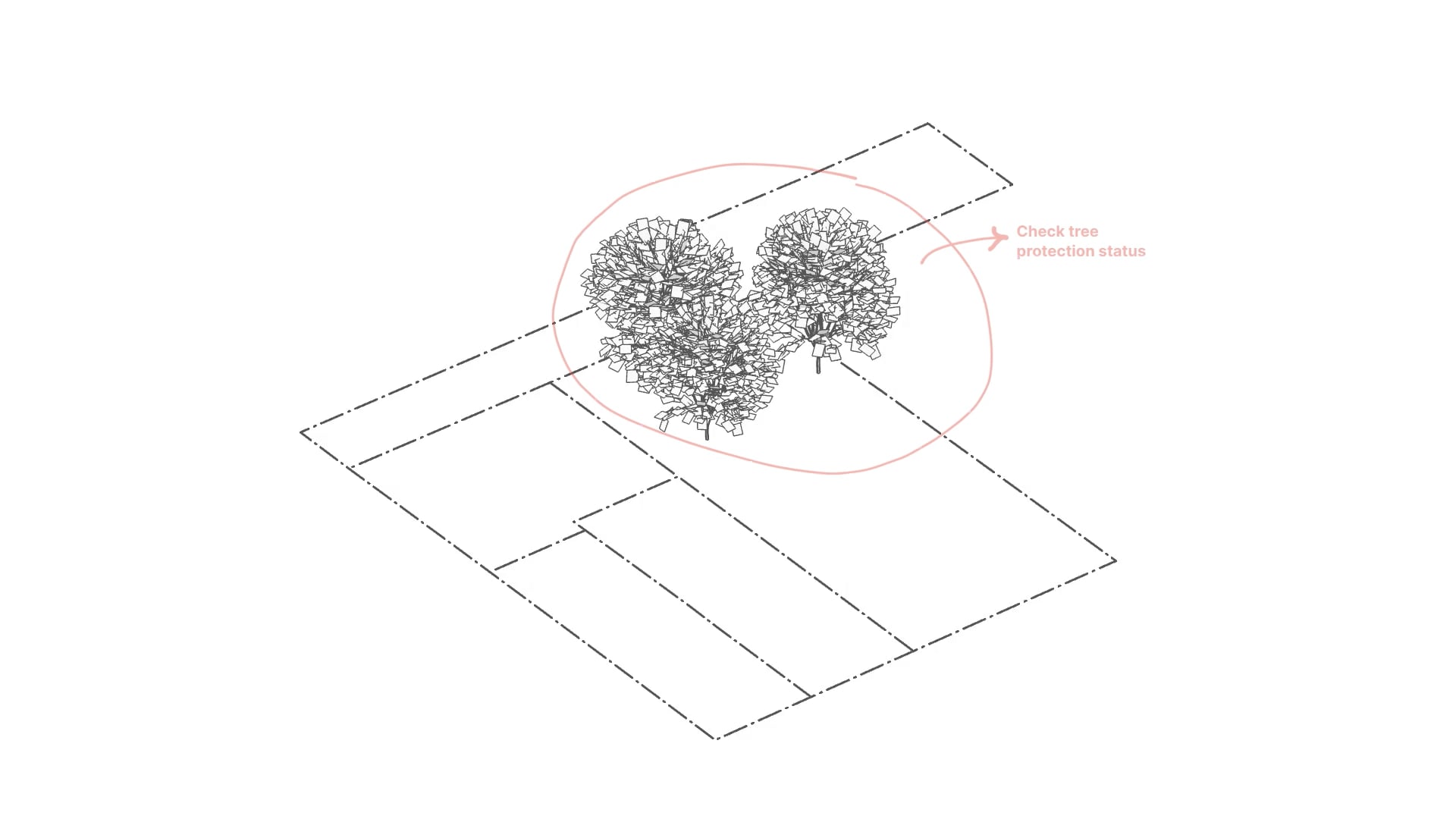
Take any .3dm, .skp, .rvt or other supported model.
What files can it open?
The viewer is intended for AEC and 3D workflows, so it supports common architectural and design formats
3DM · STEP · IGES · OBJ · STL · FBX · GLTF · IFC · SKP
Coming from Rhino? → Drop in your .3dm
Working in SketchUp? → Drop in your .skp
Working in Revit? → Try your .ifc for an open-BIM workflow
3. Drag it into the viewer
Drop the file into the browser.
4. Wait for it to load
Your model should appear in the viewer.
5. Test navigation
Once your model is open, you can navigate around it like a typical 3D viewer.
Try: Orbit → Pan → Zoom → Perspective/Orthographic
Orbit
Orbit rotates the camera around your model.
Use it to look at your building from different directions:
Pan
Pan moves the camera sideways/up/down without rotating the model.
It’s useful when you’ve found the view you want but need to reposition the model within the screen.
Zoom
Zoom moves you closer to or further away from the model.
Use it to switch between:
-
whole-building view
-
room/interior view
-
façade detail
-
construction/detail inspection
Perspective / Orthographic
The viewer also allows you to switch between perspective and orthographic views.
This is particularly useful for architects.
Perspective gives you a more natural camera view.
Orthographic removes perspective distortion and is useful when inspecting geometry more technically.
6. Test display styles
The Local Viewer isn’t limited to one visual appearance.
Switch between:
-
Default A general-purpose view for simply looking at the model;
-
Shaded Useful for understanding the form and surfaces of the model;
-
Arctic A simplified visual style that can make the geometry easier to read without the distraction of the original materials;
-
X-ray Useful when you want to see through parts of the model and understand what is happening inside.
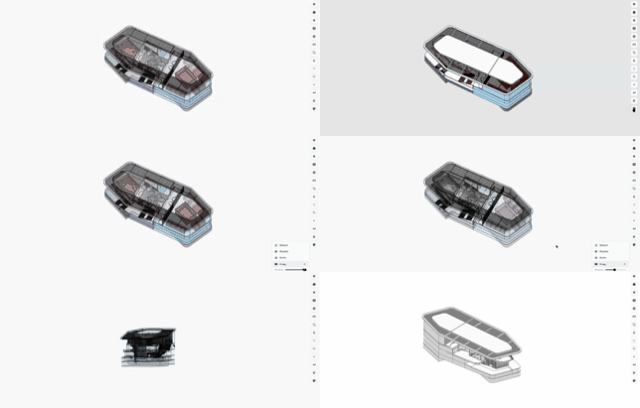
7. Look at your model from different scales
Try:
whole building → floor → room → façade → detail
What actually happens to your file?
Your local model stays local.
The Local Viewer is designed to process the model in your browser, rather than uploading it to the Differential cloud. The file isn’t being added to a Differential cloud project.
This is different from the cloud/sharing workflow, where you can upload or link models and create shareable viewer links.
Why does that matter?
It makes the Local Viewer useful when you simply want to:
-
quickly inspect a model
-
check whether a file opens correctly
-
show someone a model on your computer
-
view a model without having the original modelling software installed
-
inspect a file without putting it into a cloud service
What the free local viewer does — and doesn’t do
It’s important not to confuse the Local Viewer with the full Differential platform.
The Local Viewer is for:
Opening → viewing → inspecting
You can open your model locally and navigate around it without an account.
The wider Differential platform includes things such as:
-
cloud projects
-
shareable links
-
embeds
-
multi-model workflows
-
live Grasshopper streaming
The cloud workflow lets you store or link models through services such as Google Drive, Dropbox, OneDrive, and S3, while the local viewer is designed to work without an account and without uploading the model.
If something is not working, you find an issue, or you have a feature request, feel free to create a post in the relevant topic on the differential.tools forum.