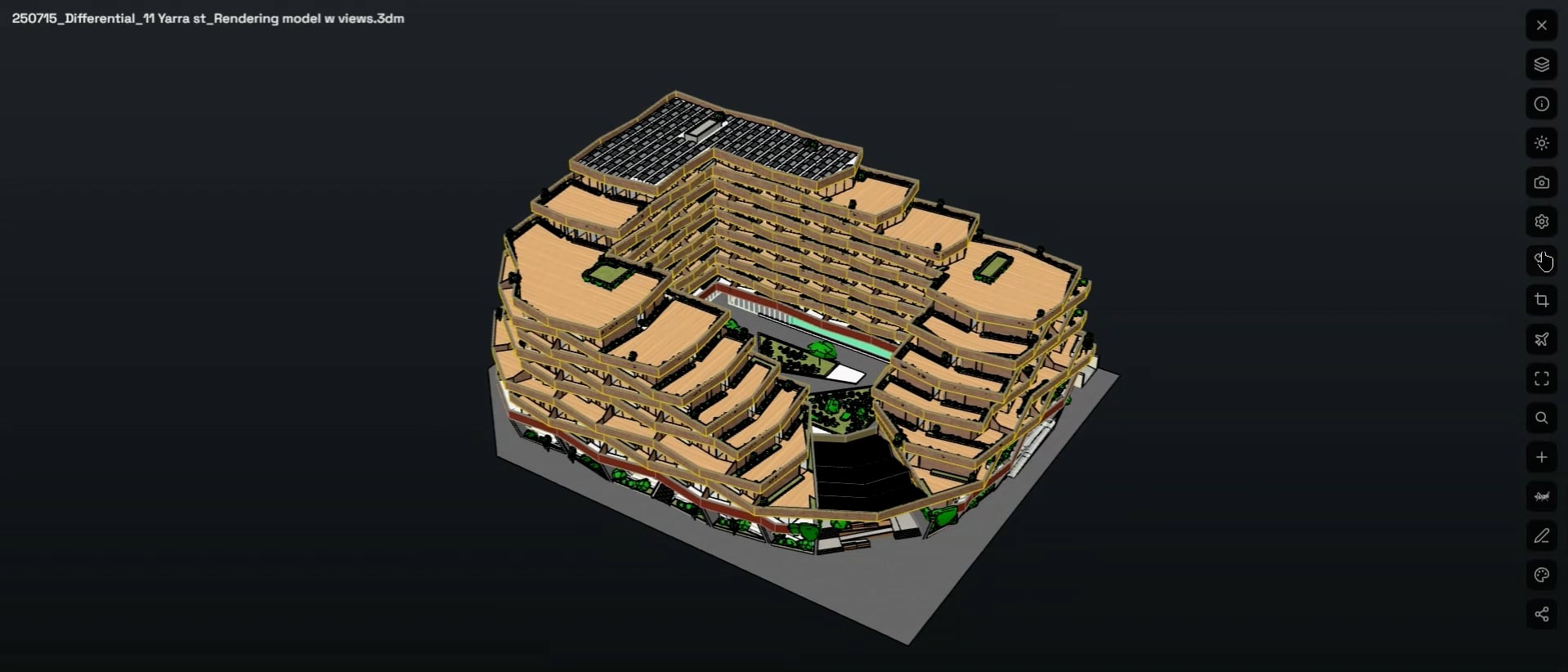
How To: Look at, cut and measure a model
Use this when you need to inspect a model, look inside it, or quickly check a dimension without opening the original software.
Open your model either in the Local Viewer or from one of the Projects you have created.
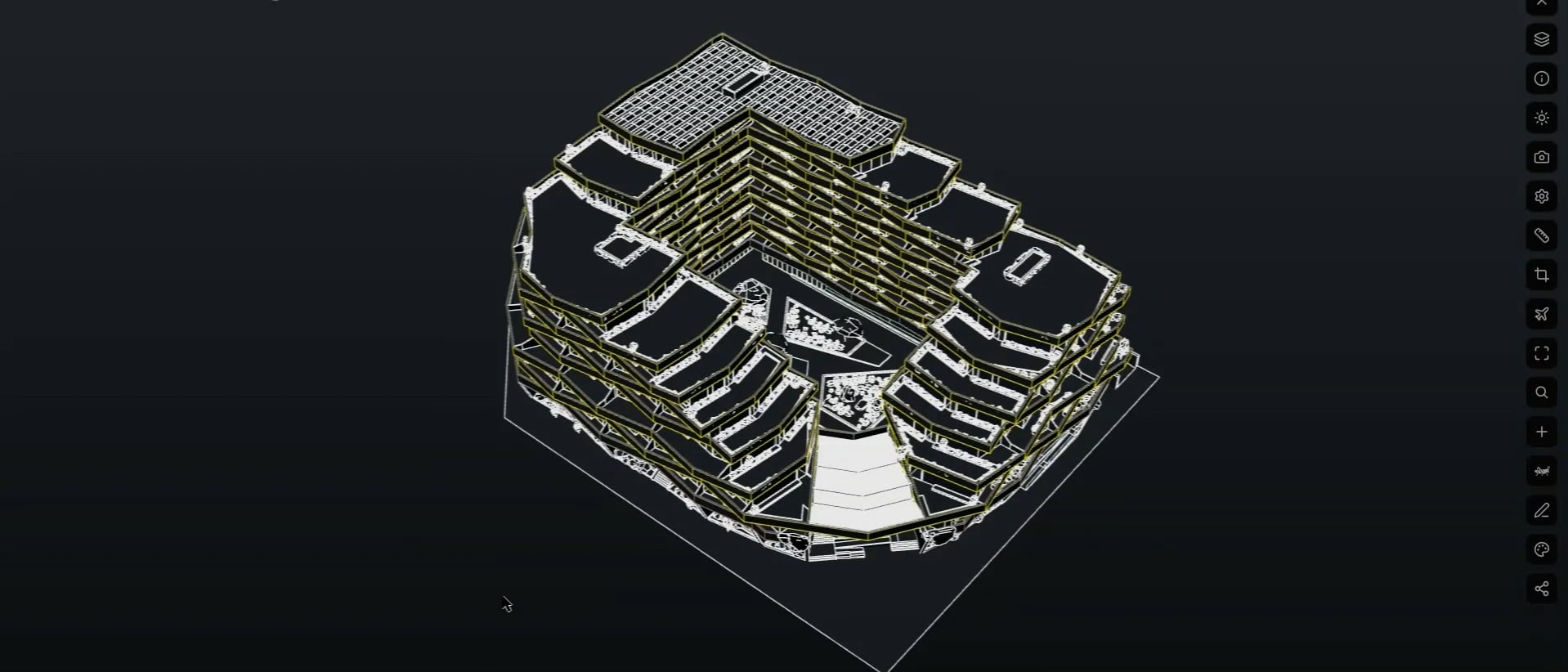
Change how the model looks
1. Open the display styles
Find the Display Style controls in the viewer:
-
Default
-
Arctic
-
X-ray
-
Shaded
Cut into the model
2. Open the section tool and activate the clipping box
Find the Section or Clipping Box control. Select the Clipping Box.
A box should appear around your model.
3. Move a clipping plane through the model
Move one of the clipping-box faces through the building.
As the plane moves through the model, geometry on one side is hidden. This lets you look inside the building without modifying the original model.
Measure the model
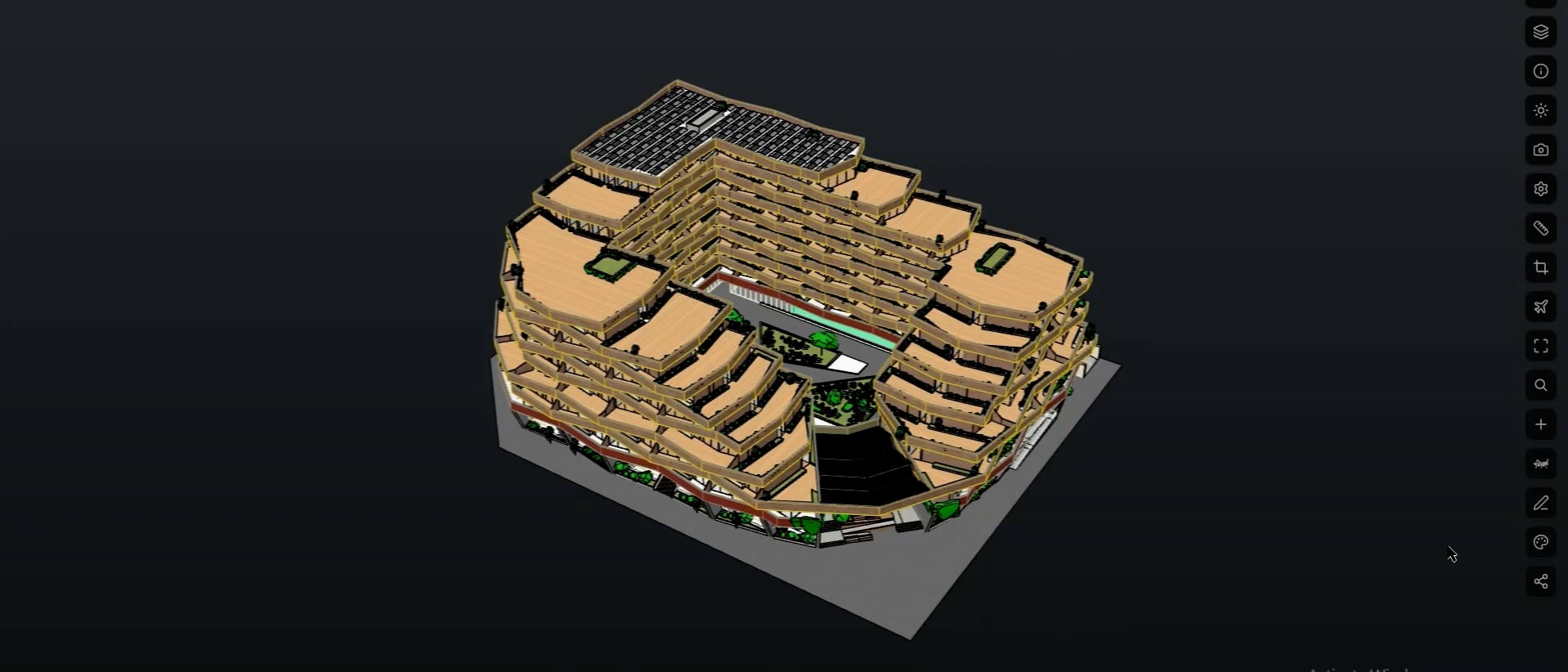
5. Open the measurement tools
Find the Measurements panel.
Select Distance.
Click the first point you want to measure. Click the second point.