How To: Workspace and Linked Models
How to combine your model with other users’ files.
Use this when you need to coordinate several models from different people or software in one view—for example, checking your architectural Rhino model against a surroundings model without manually combining the files.
By the end of this guide, you will have your model and another user’s model visible together in a shared workspace, with the models linked to cloud storage so you can refresh them when their source files change.
1. Understand what a workspace is
A workspace is a collection of models that you can view together as one coordinated scene.
Instead of combining every other user’s file into your own model, you keep the files separate and bring them together for coordination.
Why use a workspace?
Imagine you are working on a building in Rhino and your coworker sends you an updated site analysis file.
Without linked models, you might have to:
-
Download your colleague’s model, convert it into different formats if needed;
-
Combine it with your own model;
-
Repeat the process whenever someone sends an update.
With a workspace, the models remain separate. You can update a linked model when its source changes, without rebuilding the entire scene.
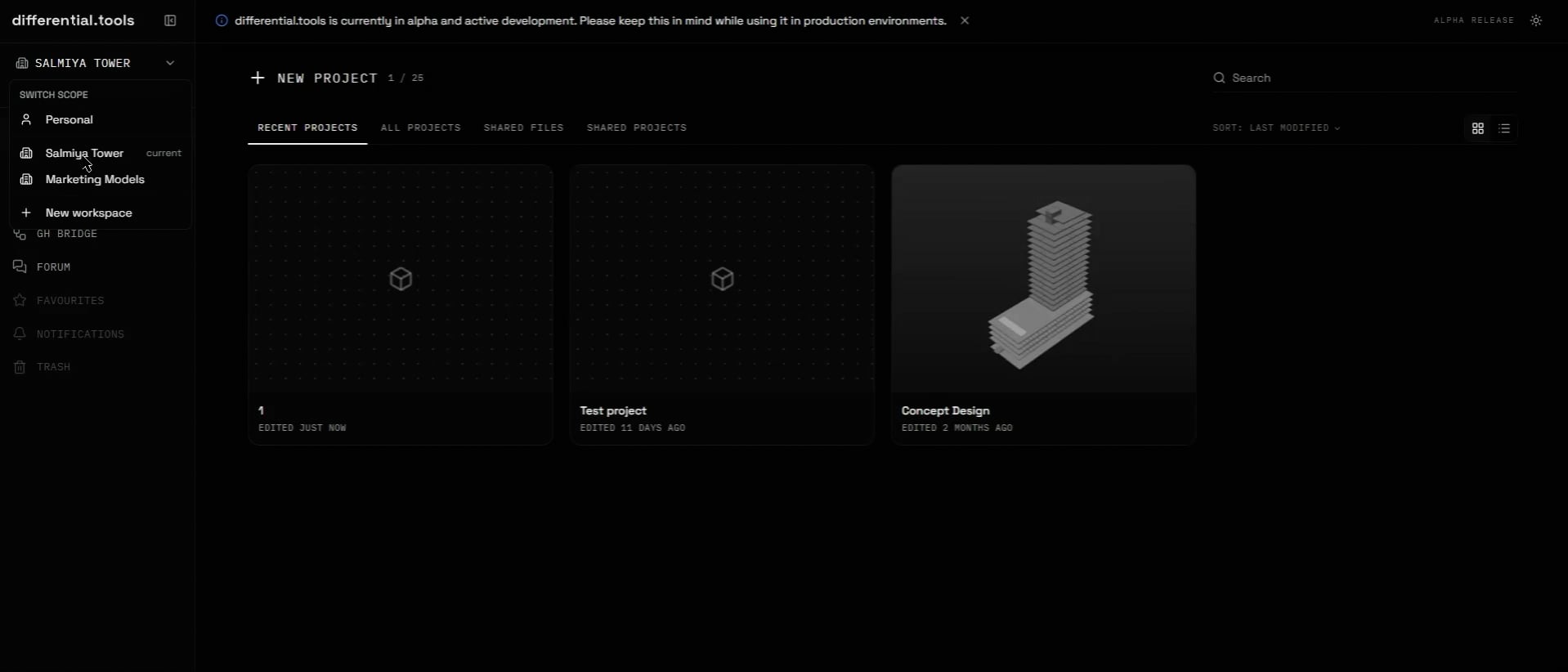
2. Create a workspace
Open Differential.Tools and sign in to your account.
Select + New Workspace.
Give your workspace a descriptive name.
Confirm the creation of the workspace.
Your new workspace is now ready for models.
3. Link your model from cloud storage
For this example, imagine that your architectural model is saved in Google Drive.
The same general workflow applies to Dropbox and OneDrive.
Prepare your file
Make sure your model is saved in the cloud-storage folder you intend to use.
Save the latest version of the model before linking it.
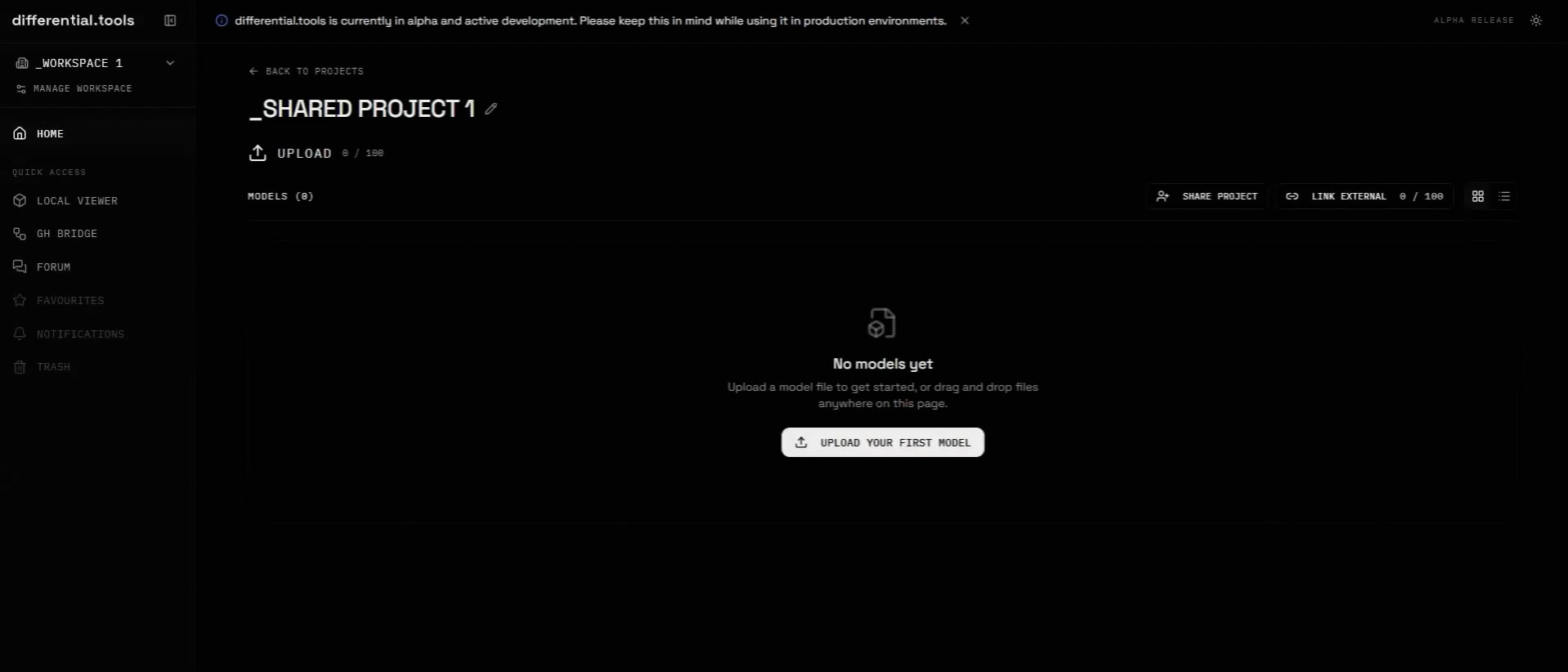
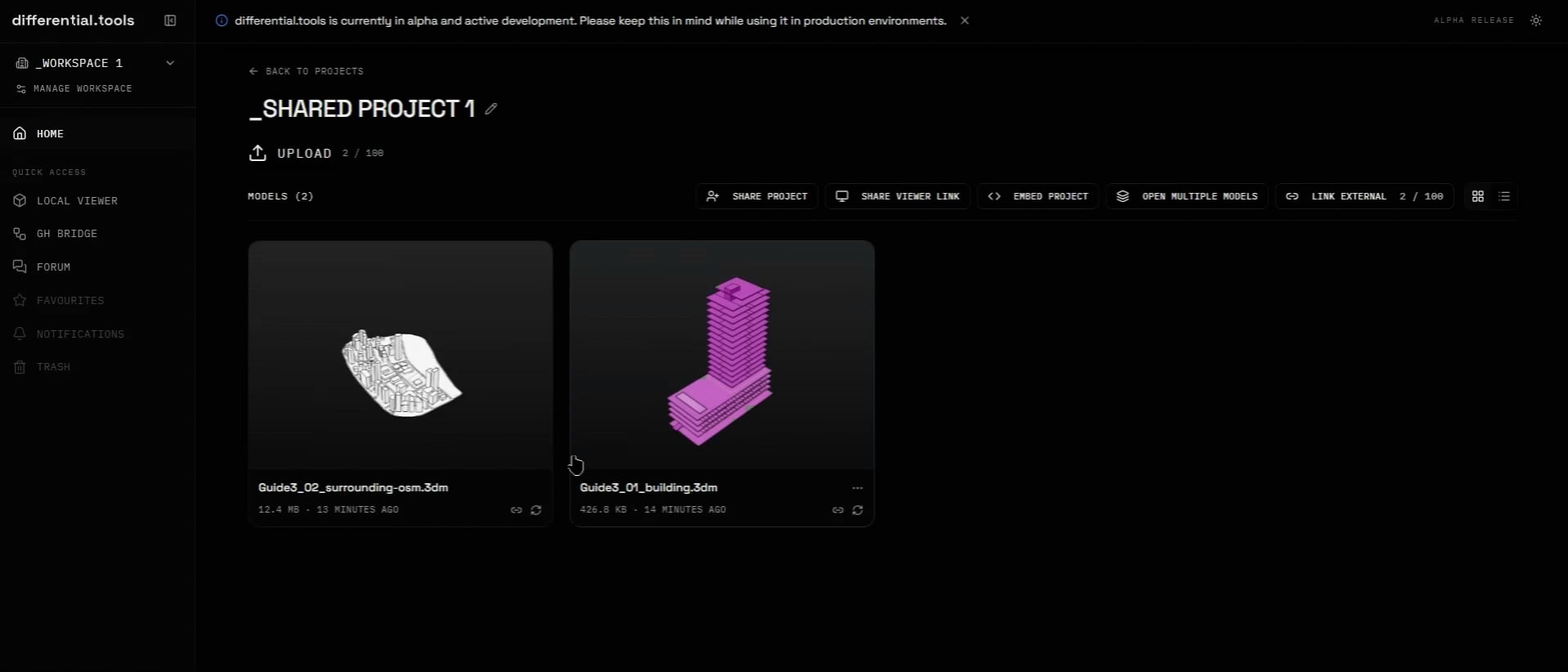
Add the model to your workspace
-
Open your workspace.
-
Select LINK EXTERNAL
-
Choose Google Drive as the source.
-
Share the link to your file
-
Press Link Model
Once the model has loaded, it should appear in the workspace.
Why link instead of upload?
A linked model has a connection to its source file.
This means that when the source model is updated, you can refresh the linked version instead of manually uploading a new copy each time.
4. Link the other user’s model
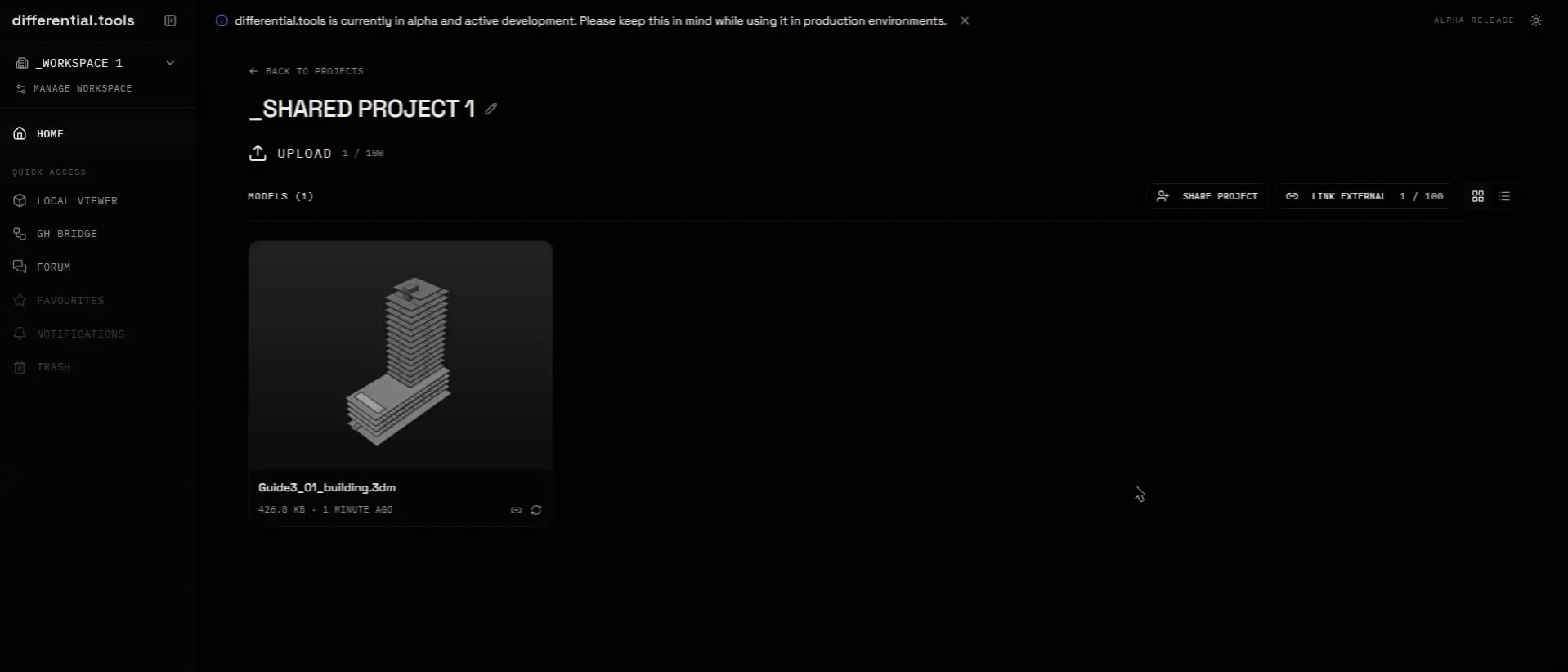
Now add the second user’s model to the same workspace.
For this example, assume your colleague has provided the file, that is stored in the same shared Google Drive folder.
Add the second model
-
Return to your existing workspace;
-
Select Link External;
-
Choose Google Drive as the source;
-
Link your coworker’s file;
-
Confirm the link.
-
Wait for the model to load.
You should now have two separate models in the same scene.
5. Check that the models align
Before starting coordination, check whether the models occupy the correct positions relative to one another and to the point zero.
For example:
-
Is the structural frame inside the building?
-
Do the columns align with the architectural grid?
-
Are the floor levels at the same elevations?
-
Is the consultant’s model rotated correctly?
-
Are both models using the same units?
Use Orbit, Pan, and Zoom to inspect the combined scene.
If the models do not align, the problem may be related to:
-
different coordinate systems;
-
different project origins;
-
different units;
-
incorrect export settings;
6. Refresh a linked model
One of the main reasons to use linked models is that the source can change while the coordination scene stays the same.
Let’s say your coworker updates the structural file.
They save a new version of the file in Google Drive.
You want to see that update in your workspaces.
Update the source file
Ask the other user to save the latest version of their model to the same linked location.
The file should retain the same location if you want to refresh the existing link.
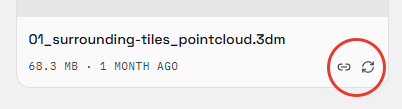
Refresh the model in Differential
-
Open the workspace containing the needed file.
-
Find the linked structural model.
-
Open its model options.
-
Select Refresh or the equivalent update action.
-
Wait for the new version to load.
7. What does the other person see when you save?
There are two separate things to understand:
Saving the source model
If your colleague edits their file and saves it to the linked cloud storage location, the updated source becomes available for refreshing.
If you edit your Rhino model and save it to its linked location, the updated Rhino file becomes available in the same way.
Refreshing the linked model
Saving the source file does not necessarily mean that every person viewing the workspace instantly sees the new geometry.
The other person may need to refresh the linked model or reopen the relevant view.
For this reason, a useful coordination habit is:
Save the source → tell the team → refresh the linked model.
This makes it clear which version everyone is looking at.
8. Load different formats side by side
A workspace is useful precisely because your team does not have to use the same modelling software.
The models can be kept in their original formats and viewed together, provided the formats are supported, and the models are correctly positioned.
Try this
-
Open your workspace.
-
Add the Rhino model.
-
Add the IFC model.
-
Use Orbit to inspect the combined geometry.
-
Switch to a top or orthographic view if available.
-
Check how the models overlap.
Why is this useful?
You can inspect relationships between disciplines without first converting every model into the same format.
10. Understand the layer system
When several models are visible at once, the scene can quickly become difficult to read. The layer system helps you organize the geometry and control what is visible. Think of layers as categories that let you show or hide parts of a model.
Why use layers?
Suppose you want to inspect the relationship between the structural columns and the architectural walls.
You can hide unnecessary geometry, such as:
-
furniture;
-
vegetation;
-
roof details;
-
interior finishes.
This makes it easier to focus on the coordination problem.
11. Turn layers on and off
Open the Layers panel.
Find the layer you want to control.
Use the layer’s visibility control to hide or show it.
13. Final check: your coordinated workspace
At the end of this guide, you should have:
-
a workspace created in Differential.Tools ;
-
your Rhino model linked from cloud storage;
-
another user’s model linked from cloud storage;
-
both models visible in the same scene;
-
the ability to refresh a linked model after its source changes;
-
an understanding of how to add more models;
-
a way to control model visibility using layers.